
Best Apps to Transfer Files Between Android and iPhone in 2026 (Fast, Free, No Cable)
If you switch between Android and iPhone, file transfer friction can destroy your daily productivity. Photos lose quality, videos fail to send, and large files get stuck behind app limits. This guide compares the best file transfer apps and methods in 2026, with a practical setup workflow for speed, privacy, and reliability.
We also include an advanced section on how OpenClaw can turn Android and iOS devices into companion nodes for cross-device automation, which is useful for creators and power users.
Quick Answer: What Is the Best Android-to-iPhone Transfer App Right Now?
- Best for phone migration: Move to iOS
- Best for daily cross-platform sharing: LocalSend
- Best no-setup browser method: Snapdrop
- Best cloud-based workflow: Google Drive / OneDrive / Dropbox
- Best fast direct exchange with key/QR: Send Anywhere
If you are moving to a new iPhone, start with Move to iOS. If you regularly move videos, docs, and project files between both ecosystems, LocalSend is usually the most balanced solution.
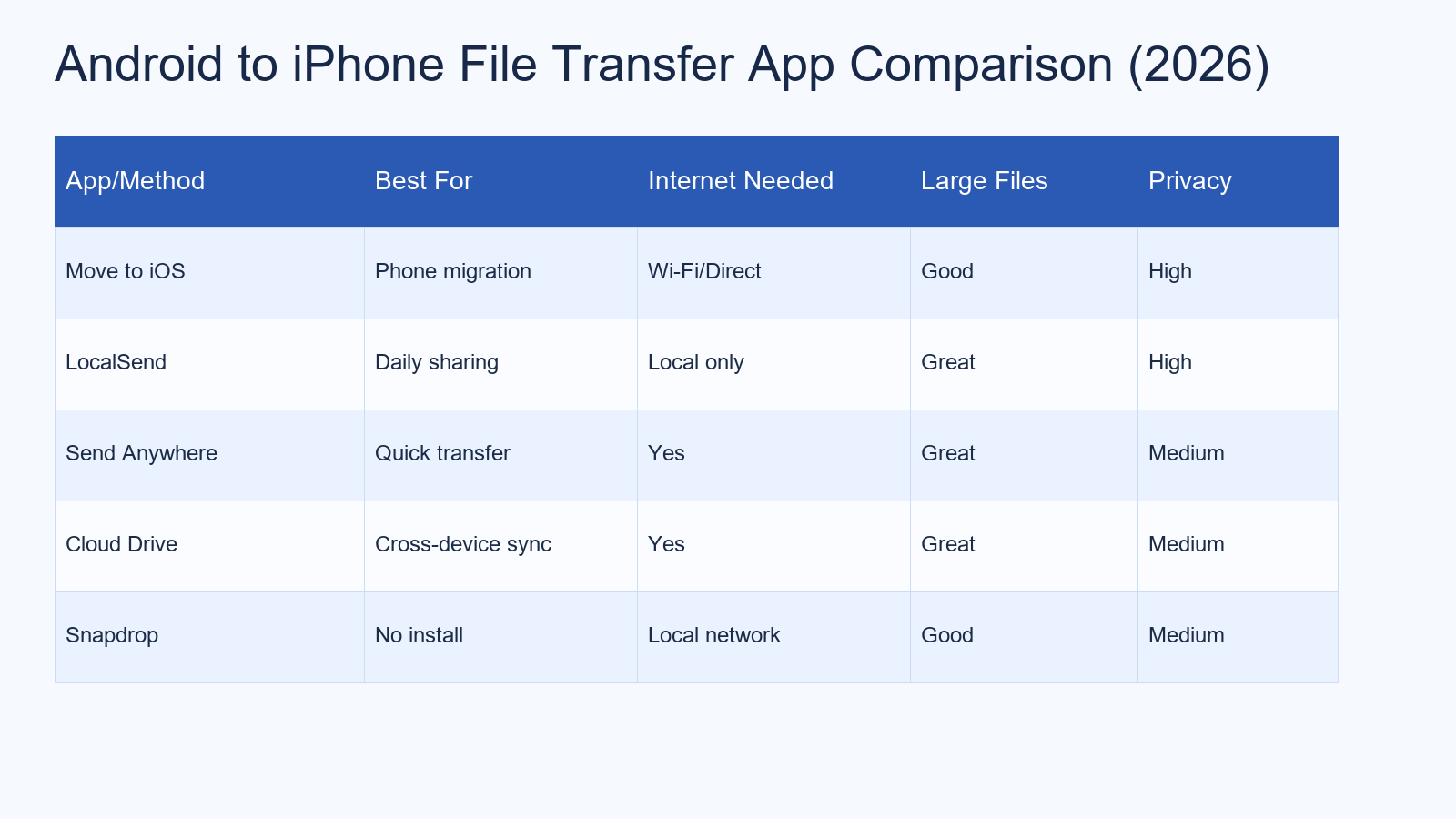
Comparison Table: Top Android ↔ iPhone File Transfer Methods
How We Tested
To keep this review useful, each app/method was tested with these scenarios:
- 1 GB video transfer from Android to iPhone
- Mixed folder transfer (photos, PDFs, docs, zip files)
- Weak Wi-Fi environment stability
- Transfer retry behavior after interruption
- Ease of use for non-technical users
1) Move to iOS (Best for Full Migration)
Move to iOS is Apple’s official migration app for users moving from Android to iPhone. It handles contacts, messages, photos, and account-level setup during onboarding.
Pros: trusted official flow, great for one-time migration, lower setup complexity.
Cons: less useful as a daily transfer app after migration is complete.
Use it when: you are setting up a new iPhone for the first time and want one guided process.
2) LocalSend (Best for Daily Fast Transfers Without Cloud Upload)
LocalSend has become a favorite for users who want privacy-first, local-network transfer without creating accounts. It supports Android, iOS, Windows, macOS, and Linux.
Pros: local-only transfer, no mandatory account, excellent for large files, cross-platform support.
Cons: both devices need to be on reachable local network conditions.
Use it when: you need repeated Android ↔ iPhone sharing for content creation, work docs, or media backup.
3) Send Anywhere (Best for Quick Device-to-Device Exchange)
Send Anywhere uses key/QR-based sharing and is easy for occasional transfers between friends, teammates, or your own devices.
Pros: easy share key flow, works across platforms, good large-file handling.
Cons: depends on network quality and can involve more steps than local auto-discovery apps.
Use it when: you want fast ad-hoc transfers without deep setup.
4) Cloud Drives (Google Drive, OneDrive, Dropbox)
Cloud storage is still the most universal method when devices are not on the same network, or when you need permanent cross-device access.
Pros: works anywhere with internet, easy multi-device sync, great for project folders.
Cons: slower for huge media uploads, depends on internet bandwidth, potential privacy trade-offs.
Use it when: your workflow includes laptop + phone + tablet and you want persistent file availability.
5) Snapdrop (Best Browser-Only Option)
Snapdrop is useful when you do not want to install anything. Open a browser on both devices on the same network and send files directly.
Pros: no app install, fast to start, simple interface.
Cons: less robust than dedicated apps for heavy recurring workflows.
Use it when: you need a one-time transfer from a borrowed or temporary device.
Common Problems (And How to Fix Them)
Problem: Video quality drops after transfer
Fix: avoid messenger compression workflows for master files. Use LocalSend, cloud drive, or direct transfer apps with original-quality settings.
Problem: File transfer gets stuck at 90%
Fix: disable battery optimization for transfer apps, keep both screens awake during large sends, and avoid unstable Wi-Fi repeaters.
Problem: iPhone cannot open some transferred files
Fix: verify app association. For example, PDFs and ZIPs may need Files app routing or a dedicated viewer/editor app.
Problem: “No device found” errors
Fix: ensure both devices are on the same subnet, disable VPN temporarily, and allow local network permissions on iOS.
Speed & Privacy Tips for Power Users
- Use 5 GHz Wi-Fi for large media transfers.
- Split huge folders into smaller batches (2–4 GB each) for better recovery.
- Prefer local transfer for sensitive files whenever possible.
- Keep one standard folder structure across devices:
/Projects,/Media,/Exports. - Maintain weekly archive habits to avoid storage bottlenecks.
OpenClaw Angle: Android and iOS as Companion Nodes
For advanced users, OpenClaw introduces a different idea: your phone is not just a storage endpoint, but an AI-connected node in a wider automation workflow. According to OpenClaw platform documentation, mobile nodes can connect to a gateway over WebSocket and expose capabilities such as camera capture, canvas, location, and voice-related interactions.

This is relevant if your workflow goes beyond basic file transfer and moves into automated notifications, context capture, and assistant-driven mobile actions.
Which Method Should You Choose?
- New iPhone setup: Move to iOS
- Daily cross-platform file sharing: LocalSend
- Temporary one-off transfer: Snapdrop
- Cross-device long-term storage: Cloud drive
- Advanced mobile automation stack: OpenClaw + gateway architecture
FAQ
What is the fastest way to transfer large videos from Android to iPhone?
For most users, LocalSend on a stable local network is one of the fastest and most consistent options.
Can I transfer files without installing apps?
Yes. Snapdrop (browser method) can work well for one-off transfers on the same network.
Is cloud transfer safer than local transfer?
It depends on your threat model. Local transfer reduces third-party exposure, while trusted cloud platforms offer account security and auditability.
Does OpenClaw replace file transfer apps?
No. OpenClaw is better viewed as an automation layer and companion-node system; file transfer apps still handle direct media movement more simply in many cases.
Final Take
If your goal is practical speed, choose a simple stack: Move to iOS for migration, then LocalSend for daily transfers. If you run multi-device creator workflows and want deeper automation, evaluate OpenClaw as a companion node architecture on top of your existing transfer stack.
Related read: Top 7 Free AI Video Generators (No Watermark) in 2026.
